
Unicode and Glyphs Explained in Plain Language
2 min read • Updated October 17, 2026
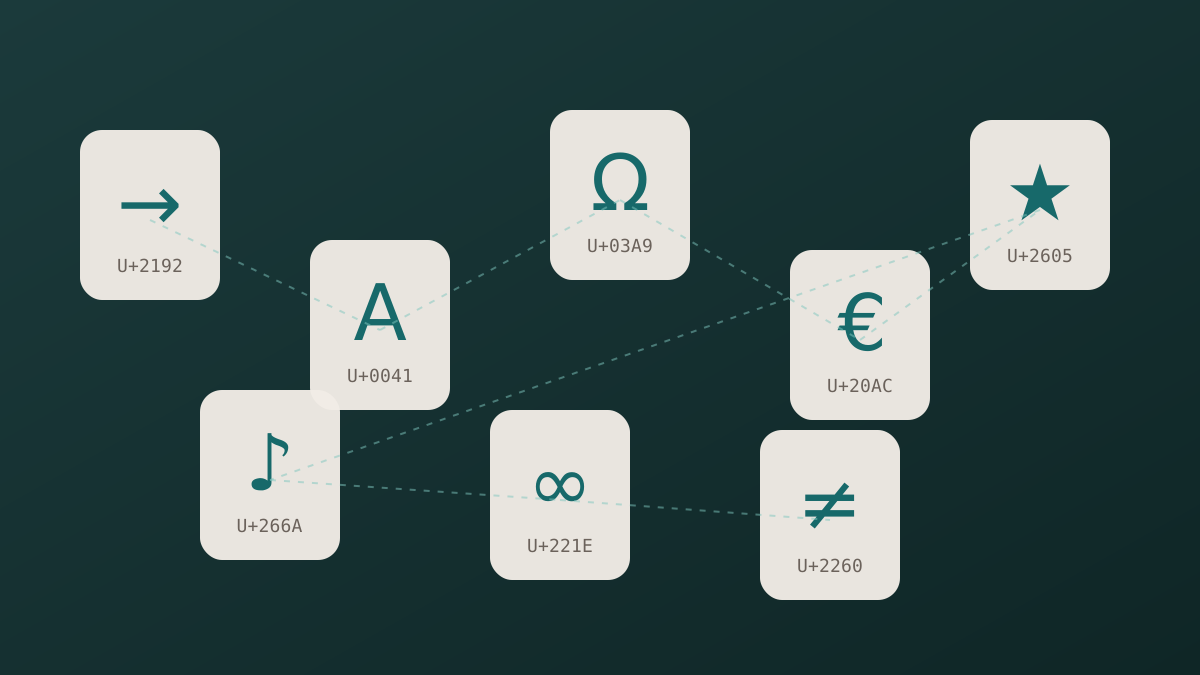
Every character you type is stored as a number. Unicode is the shared list that gives each character its own number, called a code point. The right arrow, for example, sits at U+2192, while the capital letter A sits at U+0041. Because every device reads the same list, a symbol written on one phone can be read on a laptop, a tablet or a web page without being scrambled.
Glyphboard: Characters and glyphs are different things
A character is the idea: “the right arrow”. A glyph is the picture a font uses to draw that idea. Two fonts can show the same character with different shapes, thicker lines or rounder tips. When someone says a symbol looks different on their device, they are usually seeing two glyphs for the same character.
Glyphboard: Why a symbol sometimes appears as an empty box
If the font in use has no drawing for a character, the system looks for another font that does. When no font on the device covers it, you get an empty rectangle. This is not a typing mistake. The character is still stored correctly, and it will display properly once a font that includes it is available.
Glyphboard: Blocks and categories
Unicode groups related characters into blocks. Arrows live together, as do mathematical operators, box drawing lines, currency signs and Greek letters. Glyphboard follows this idea and sorts its board into categories, so you can move straight to the family of symbols you need instead of scrolling through everything.
Glyphboard: Real characters versus styled text
Some websites produce fancy lettering by swapping normal letters for mathematical or decorative lookalikes. These are still genuine Unicode characters, but they were designed for specialist use, and screen readers and search tools may handle them poorly. For everyday writing, plain letters plus a few well chosen symbols are easier to read and safer to share.
Glyphboard: Where to go next
Once the difference between a character and a glyph is clear, picking symbols becomes simple. Open the board, search by name or browse a category, and tap what you need. The related guides below explain how to type symbols on each kind of device and how to deal with display problems.
Need a symbol right now?
Open the board, search by name and tap to copy.
More from the Glyphboard guide
How to Type Symbols on iPhone and Android
Built-in tricks for special characters on phones, plus a faster route when the system keyboard runs out of options.
Read article
Special Characters on Windows and Mac Computers
The built-in character tools on Windows and macOS, and how they compare with a browser based board.
Read article
A Guide to Arrow and Math Symbols in Unicode
Which arrows and operators exist, what each one means, and which look-alikes to avoid.
Read article