Mobile
How to Type Symbols on iPhone and Android
Built-in tricks for special characters on phones, plus a faster route when the system keyboard runs out of options.
Read articleGlyphboard gathers arrows, stars, math signs, currency marks and 1,300+ other Unicode glyphs on one searchable board. Tap a symbol to copy it, then paste it into a message, a bio, a document or your code on any device.
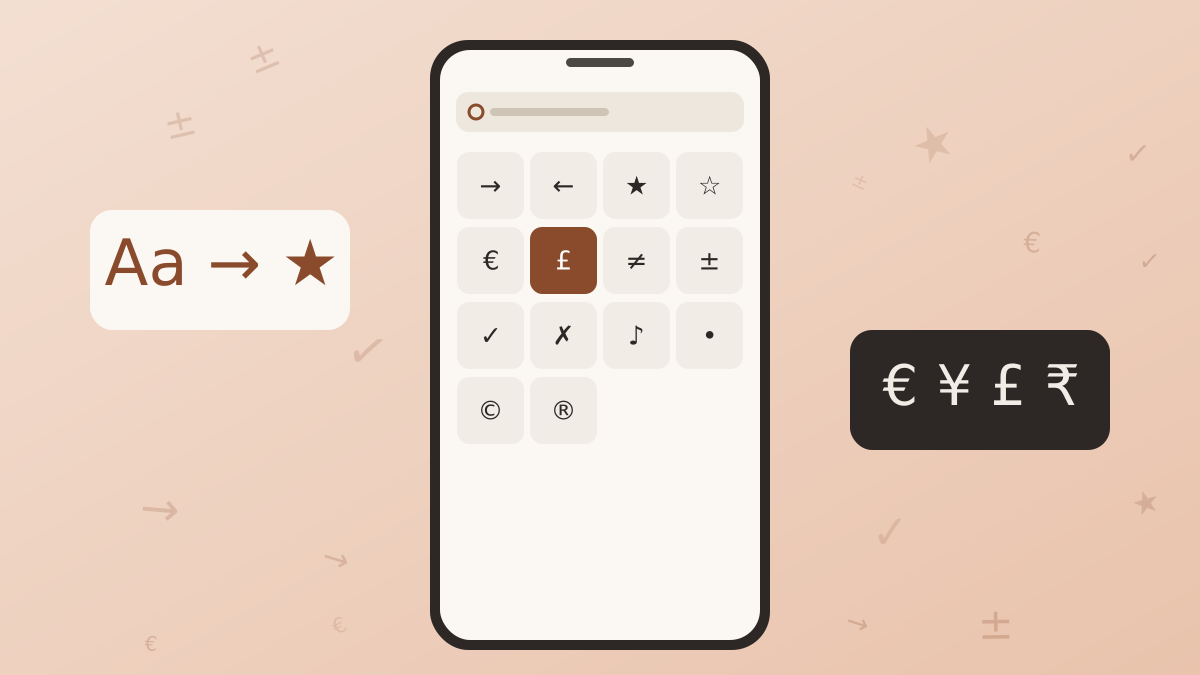
The board below holds 1,388 Unicode characters sorted into 14 categories. Browse a category, search by name, or paste a character to see what it is. Every tap adds the glyph to the composer box and places it on your clipboard.
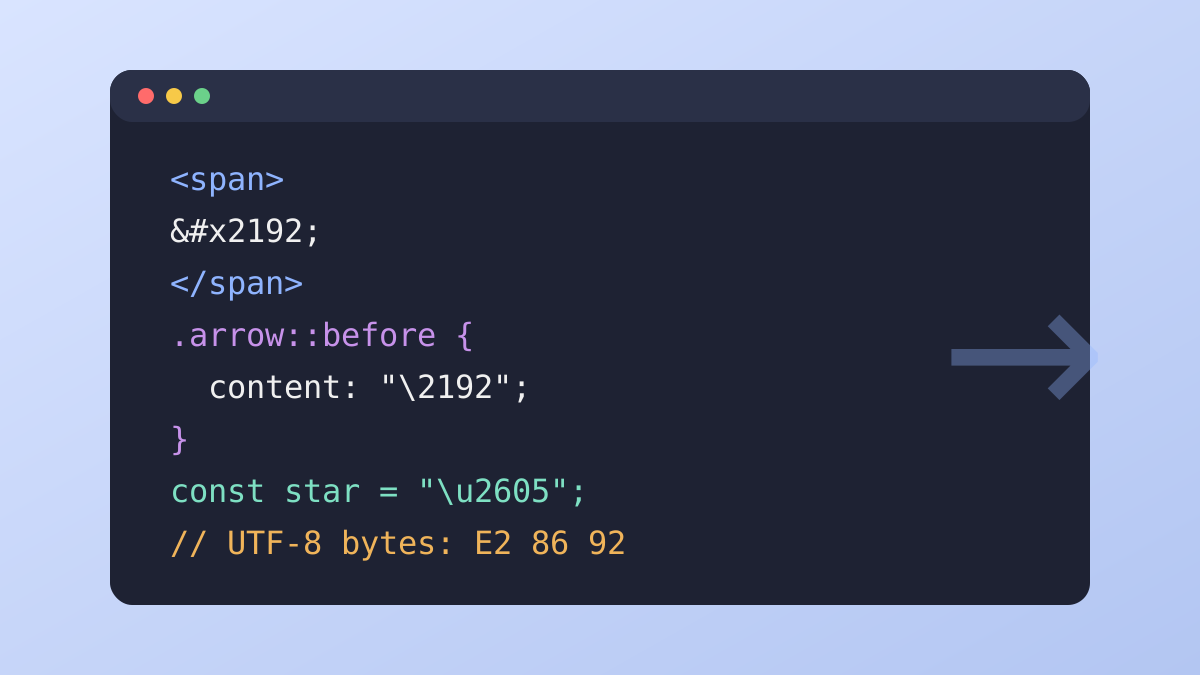
Selecting a glyph also opens a detail strip with its code point, its official name and ready to use escape values for HTML, CSS and JavaScript.
A quick tip for longer lines: keep tapping and the composer collects everything in order, so a full bullet list, a row of arrows or a short formula can be copied in one go. The backspace control removes the last glyph, and the clear control empties the box.
Glyphboard exists to put the exact symbol you need into your text with as few steps as possible. These are the parts that make that work.
Type a word such as arrow, euro or omega and matching characters appear straight away. You can also paste a character to look up its name and code point.
Arrows, math, currency, punctuation, Greek, shapes, box drawing, superscripts and more sit in 14 separate groups, so a browse takes seconds.
Each tap adds the glyph to the composer box and copies it to the clipboard. Gather several symbols, then copy the whole line in one step.
The last symbols you used stay in a row above the grid, so repeat picks never need another search.
See the code point, HTML entity, CSS escape and JavaScript escape for any glyph, each with its own copy control.
The board runs in your browser on phones, tablets and computers. There is no account, and your recent picks never leave your device.
Nothing here needs a learning curve. The search field accepts plain words, single characters and hexadecimal code points, so you can look up a symbol by what it is called, by pasting it, or by typing its U+ number. Every result is a standard Unicode character that works in ordinary text fields.
The routine is the same on every device, so once you have done it a couple of times it becomes second nature.
Go to the tool section on this page. It loads at once and needs no sign-in or setup.
Pick a category chip or type a name in the search field. Results update as you type.
The glyph is added to the composer and copied to your clipboard. The detail strip shows its name and code values.
Switch to your message, document or editor and paste. On a phone, hold inside the text field and choose paste. On a computer, use Ctrl+V or Command+V.
On a phone, add this page to your home screen so the board opens like an app. On a computer, pin the tab and it stays one click away while you write.
If you collect several glyphs before pasting, the composer box keeps them in the order you tapped. Edit the line with your keyboard if you wish, then use the copy control to place the full text on your clipboard.
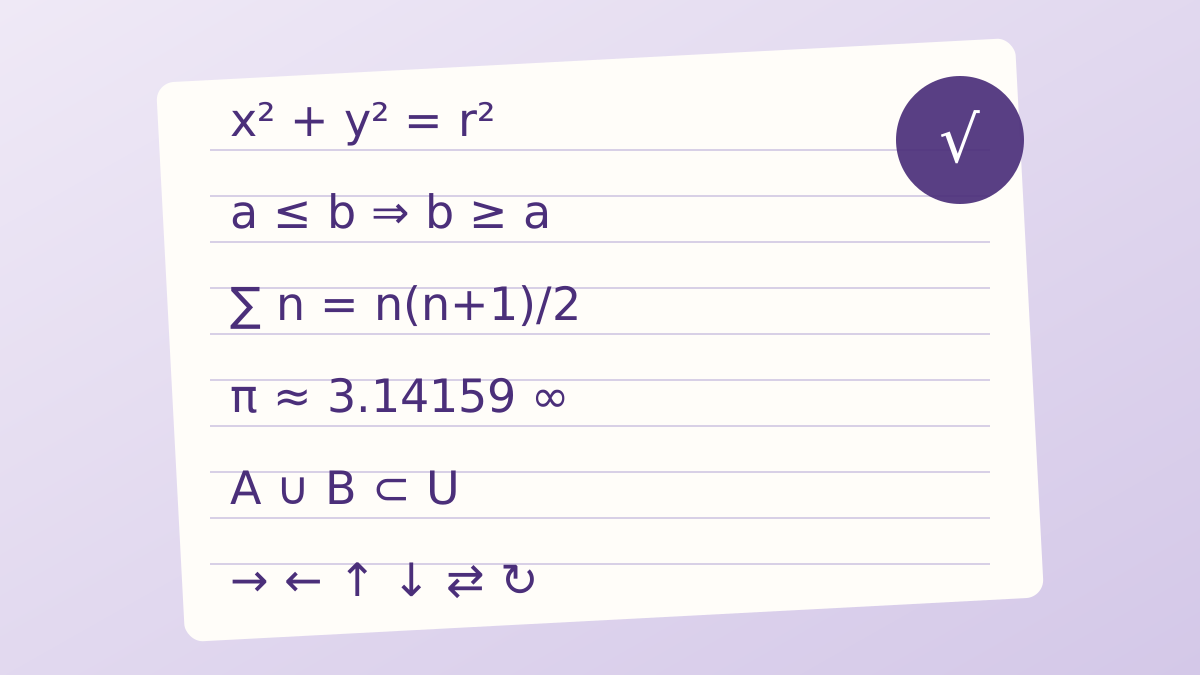
Glyphboard focuses on characters that people actually look for: direction arrows, mathematical operators, currency signs, punctuation that keyboards leave out, Greek letters, shapes, lines for text frames, and more.
Six more groups cover brackets, accented Latin letters, numbers and letterlike signs, music and zodiac marks, cards and chess pieces, and weather and sign symbols. Open any chip in the tool to see its full contents.
Rare and historic scripts are left out on purpose. A smaller, well chosen set loads quickly and stays easy to browse, and it favours characters that nearly every modern font can draw.
Within each group the glyphs follow the order of the Unicode standard, so related shapes sit side by side. Arrows appear in families of single, double, curved and dashed styles, and math signs run from basic operators to set and logic symbols. Hover over a glyph to read its official name, or select it to see the full detail strip.
Symbols show up in more places than most people expect. Here are the situations that come up most often.
Add separators, bullets and arrows to bios and captions so short lines are easier to scan.
Insert a true minus sign, an em dash, curly quotes or an ellipsis for cleaner documents.
Reach operators, Greek letters, superscripts and fractions without a formula editor.
Copy HTML, CSS or JavaScript escape values for characters your editor cannot hold.
Draw dividers, frames and small progress bars in plain text with box drawing characters.
Find accented Latin letters, Greek characters and currency signs from many regions.
Across all of these cases the goal is the same: use the right character rather than a stand-in. A real minus sign, a proper arrow or the correct currency mark reads more clearly, copies cleanly between apps and keeps its meaning when text is searched, translated or read aloud by assistive tools.
Glyphboard uses standard web technology, so it behaves the same way on a pocket phone and a wide desktop monitor. The layout adapts to the screen, and the glyph grid stays easy to tap on small displays.
Safari and other iOS browsers handle the board and the clipboard without extra steps.
Chrome, Firefox, Edge and Samsung Internet all work, and the recent row stays handy.
Use any current browser, then paste with Ctrl+V into your app of choice.
Safari, Chrome and Edge work well, and Command+V pastes your selection.
One thing to keep in mind is that the font on the receiving device draws the final shape. A symbol may look slightly different from one system to the next, and a rare character may appear as an empty box where no font includes it. The guide explains how to check and fix this.
When you write for a wide audience, choose symbols from long established groups such as arrows, punctuation, shapes and math operators, because those are covered by almost every system font. For key information such as prices or instructions, add a plain text fallback beside the symbol so the message survives on any screen.
Short, practical articles cover typing symbols on each kind of device, using characters correctly in writing and code, and solving display problems. Here are three to start with, and the full list is one click away.
Built-in tricks for special characters on phones, plus a faster route when the system keyboard runs out of options.
Read articleWhich arrows and operators exist, what each one means, and which look-alikes to avoid.
Read articleHow to write any character as an HTML entity, a CSS escape or a JavaScript escape sequence.
Read articleQuick answers about how the board works and what to do when something looks off.
Glyphboard is a browser based Unicode keyboard. It groups arrows, stars, math signs, currency marks, Greek letters, punctuation and many other symbols into one board that you can search and browse, then copy with a single tap.
No. Open the page and the board is ready. There is no sign-up, no form and nothing to configure before you start copying symbols.
Glyphboard works on iPhone, iPad, Android phones, Windows PCs, Macs and Chromebooks. Any current version of Chrome, Safari, Edge, Firefox or a similar browser handles it well.
Switch to the app where you are typing, hold or right-click in the text field and choose paste. On a keyboard, use Ctrl+V on Windows and Linux, or Command+V on a Mac.
The font on the device you are using has no picture for that character. The symbol itself is still correct. Try another app or font, or read the guide on fixing missing glyph boxes.
Yes. Type a word such as arrow, star, euro or omega into the search field and the board lists every matching character. You can also paste a character to check its name and code point.
It shows the glyph at a large size, its code point, its official Unicode name and ready-to-use HTML, CSS and JavaScript escape values, each with its own copy control.
The board runs inside your browser. Your recent picks are saved only in your own browser storage so the recent row can remember them, and they can be cleared at any time.
They are standard Unicode characters, not images and not special fonts. That means they can be pasted into messages, documents, code and web forms in the same way as ordinary letters.
Yes. Each tap adds the glyph to the composer box above the grid. When your selection is ready, copy the whole box in one step.
The board is one scroll away. Search, tap and paste.